Table of Contents
Error:
Resolution:
1. Click No on the above error message to close it.
2. Right click on your Asigra shortcut and select Properties.
3. Scroll to the beginning of the Target field to find the location of the Java files in
use.
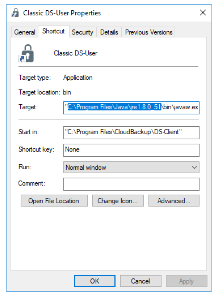
4. Delete the Java file path, the quotation marks surrounding the Java file path, and
anything to the left of "C:\Program Files\CloudBackup\DS-Client\dsuser.jar”
5. Click OK.
NOTE: Click Continue to complete this task if prompted to provide administrator
permissions.
6. If the shortcut is pointing to the dsuser.jar file, make sure Java is installed. If
Java is not installed, install it.
○ Example shortcut target: "C:\Program
Files\Java\jre1.8.0_341\bin\javaw.exe" -jar "C:\Program
Files\CloudBackup\DS-Client\dsuser.jar"
○ Java installation files: https://java.com/en/download/manual.jsp
○ Please make sure you select the Windows Offline (64-bit) for 64-bit
versions of Windows.
use.
4. Delete the Java file path, the quotation marks surrounding the Java file path, and
anything to the left of "C:\Program Files\CloudBackup\DS-Client\dsuser.jar”
5. Click OK.
NOTE: Click Continue to complete this task if prompted to provide administrator
permissions.
6. If the shortcut is pointing to the dsuser.jar file, make sure Java is installed. If
Java is not installed, install it.
○ Example shortcut target: "C:\Program
Files\Java\jre1.8.0_341\bin\javaw.exe" -jar "C:\Program
Files\CloudBackup\DS-Client\dsuser.jar"
○ Java installation files: https://java.com/en/download/manual.jsp
○ Please make sure you select the Windows Offline (64-bit) for 64-bit
versions of Windows.